Launching the GPT-2 model in SageMaker
1. Subscribe to the offering
- Log in to AWS with a user with administrative privileges
- Navigate to the GPT-2 listing on the AWS Marketplace
- Click
Continue to Subscribe -
Click on
Accept offer(it might take 1 or 2 minutes for AWS to accept the offer).Note that there is no charge for subscribing to this offering only when launching the model on SageMaker
-
Once you are subscribed click
Continue to Configuration - On the
Configure and launchpage- Select
SageMaker consoleas the Launch Method (you can also use the CLI if you preffer) - Select the version and region where you want to launch the model
- On
Amazon SageMaker optionsselectCreate a real-time inference endpoint
- Select
- Click on
View in Amazon SageMaker
2. Create the endpoint
In he Create endpoint page:
-
You will be sent to the
Create endpointwizard on the Amazon SageMaker console- Name the model, e.g.
gpt-2 - Select or create a new IAM role for executing the model
- Under
Container definitionbe sureUse a model package subscription from AWS Marketplaceis selected - Click on
Next - Name the endpoint, e.g.
gpt-2 - Under
Attach endpoint configurationselectCreate a new endpoint configuration -
Be sure the named model (e.g.
gpt-2) is listed underProduction variantsHere you can select the instance types you want for the endpoint. The minimun required is
ml.m5.4xlarge -
Click on
Create endpoint configuration - Finally click on
Submit
- Name the model, e.g.
A new endpoint will be created (this can take a couple of minutes).

3. Making a query
With the SageMaker Endpoint ready you will have an HTTP endpoint to make predictions, for example:
How to query the Invocations endpoint
For complete documentation on how to query this endpoint see the AWS Docs: InvokeEndpoint documentation in AWS.
The key part being how to handle the AWS Signature Version 4, for example using Python.
Insonmia
To test the endpoint you can use the Insonmia HTTP client that supports AWS Authentication.
Create a new POST request and select the Auth method AWS IAM v4,
fill the credentials, region and use sagemaker as the service.
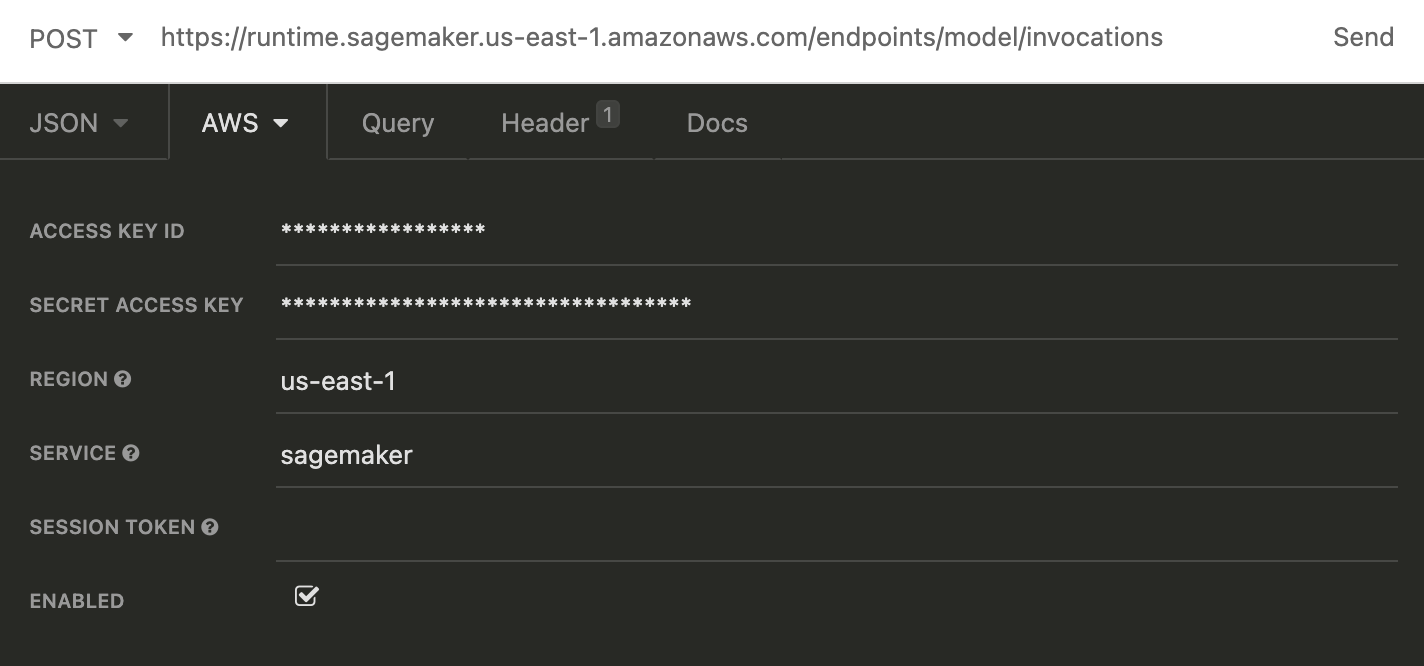
Select JSON as the body type and use the following test query:
With a response like this:
[
  "This is an input text box that will be used to input the password. The user may select a user name and password to save for later.\n\nPassword fields allow users to save themselves as a user on our server, which may be useful for",
  "This is an input text for the next button.\n\nYou can also press the backspace key twice to erase the text to the right.\n\nPressing the backspace key again to clear the previously typed text will delete the previous line.",
  "This is an input text for the widget, and it must be in the correct format. The format must be one of the following:\n\n\nText to enter on the form\n\nExample: What is the total distance in miles to your next destination"
]
Full API docs
For the complete documentation of the API including the different inputs and responses and more ways to query the Invocations endpoint see the API page.